From Signal to Action
Cockpit panels aggregate signals across your portfolio and watchlist into a single actionable view. Learn how to use them for daily monitoring.
 Marcus Chen5 min read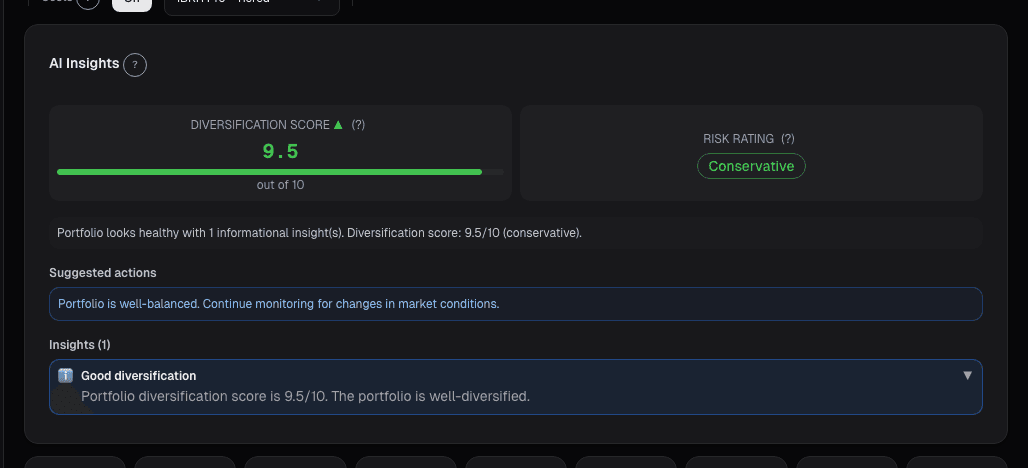
Cards Tell You What Happened. Panels Tell You What to Do.
Cockpit cards surface individual events: an earnings surprise, a signal flip, an insider trade. They answer the question "what changed?" Cockpit panels take a different angle. They aggregate those events and your position data into structured sections that answer "what should I focus on right now?"
Think of cards as the raw intelligence feed. Panels are the briefing.
The Dashboard Cockpit Section
When you open your market dashboard, the cockpit section sits at the top. It is divided into three panels that organize information by the type of decision it supports.
Market Panel
The Market panel shows macro context: broad market direction, sector-level signal density, and any regime changes detected across the universe. This is not a news ticker. It is a quantitative summary of what the market is doing right now based on strategy signals and price data, not headlines.
If the Market panel shows concentrated sell signals in a sector where you hold positions, that is context for the rest of your review. If it shows a broad-based signal shift, you know before you look at individual stocks that something systemic is happening.
Actions Panel
The Actions panel collects everything that implies a specific trade or adjustment. Strategy signals that flipped to Buy or Sell on your tracked stocks. Price alerts that triggered. Analyst upgrades on portfolio holdings. These are items where the next step is a decision: act, defer, or dismiss.
Items in the Actions panel are sorted by conviction and urgency. A Buy signal on a stock you hold with a high credibility score appears above a watchlist alert on a name you are casually tracking.
Risks Panel
The Risks panel surfaces events that threaten existing positions. Drawdown warnings, earnings misses on held stocks, insider selling, strategy signals transitioning from Buy to Sell on current holdings. These are not opportunities. They are items that require defensive attention.
Separating risks from actions prevents the most common portfolio monitoring mistake: spending all your time looking for new ideas while ignoring deterioration in what you already own.
The Portfolio Cockpit Panel
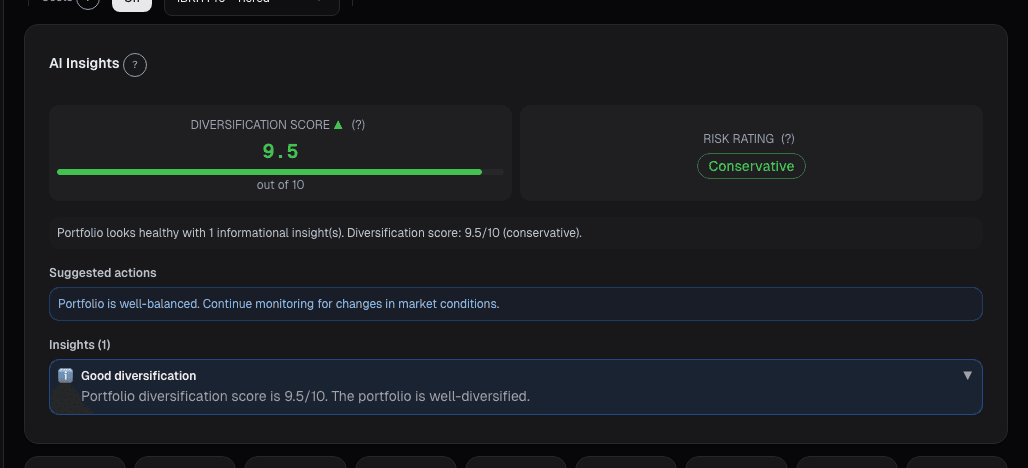
Your portfolio page includes its own cockpit panel focused entirely on held positions. This is where daily portfolio monitoring happens.
Direction Summary Chips
At the top of the portfolio cockpit, direction chips give you a one-glance summary. Each chip represents a category: Bullish, Bearish, Risk, and Neutral. The number on each chip tells you how many of your held positions fall into that category based on current strategy signals and recent events.
If you hold 15 stocks and the chips read Bullish: 8, Neutral: 4, Risk: 2, Bearish: 1, you immediately know where to focus. Click a chip to filter the panel to only those positions.
Position-Level Detail
Below the chips, each held position shows its current signal state, recent events, and any pending action items. A stock that just reported earnings above consensus with a strategy signal still on Buy is green and requires no action. A stock where the strategy flipped to Sell and an insider just dumped shares is flagged and demands your attention.
You can expand any position to see the full event history: every card that fired for that stock, every signal transition, and every alert that triggered. This is the drill-down path from summary to detail.
The Stock Ticker Bar
Every individual stock page includes a cockpit ticker bar at the top. This narrow strip shows the most recent and most relevant cockpit events for that specific ticker. When you navigate to a stock to check its chart or fundamentals, the ticker bar ensures you do not miss the context.
If you landed on AAPL's chart page and there was an insider purchase filed yesterday, the ticker bar shows it. You do not need to navigate to a separate alerts page or check a different tab. The signal meets you where you are already looking.
The Dedicated Cockpit Page
For investors who want the full picture, the dedicated cockpit page aggregates all panels, all cards, and all position data into a single view. It includes filters for event type, stock category (portfolio vs. watchlist), time range, and credibility tier.
This is the power-user view. If you want to review every signal transition across your entire coverage set for the past week, filtered to High credibility only, the cockpit page handles it. Most days, the dashboard panels are enough. The dedicated page is for deep sessions.
The Side Panel (Cmd+Shift+K)
For quick access without leaving your current page, the cockpit side panel opens with Cmd+Shift+K (Ctrl+Shift+K on Windows). It slides in from the right and shows the same ranked card stack from the dashboard, but overlaid on whatever page you are viewing. Check signals while reviewing a chart. Scan alerts while reading a strategy backtest. Close the panel and continue where you left off.
How Panels and Cards Work Together
Cards are the atoms. Panels are the molecules.
A single insider buying event generates a card. That card appears in the Actions panel on the dashboard, in the portfolio cockpit panel if you hold the stock, in the ticker bar on the stock's page, and in the side panel when you invoke it. The event is the same. The context changes based on where you encounter it.
This layered approach means you never need to go hunting for information. Whether you start your day on the dashboard, jump straight to your portfolio, or check a specific stock, the relevant signals are already there, pre-ranked and pre-filtered.
The portfolio monitoring workflow leverages these panels to cut daily review time to minutes rather than the typical scroll-through-everything approach.
Start Using Cockpit Panels
Cockpit panels activate automatically when you have stocks in your watchlist or portfolio. The more stocks you track, the more valuable the aggregation and ranking become. Add your first positions and the panels start working immediately.
Start free to see your cockpit panels in action.
See it in the app
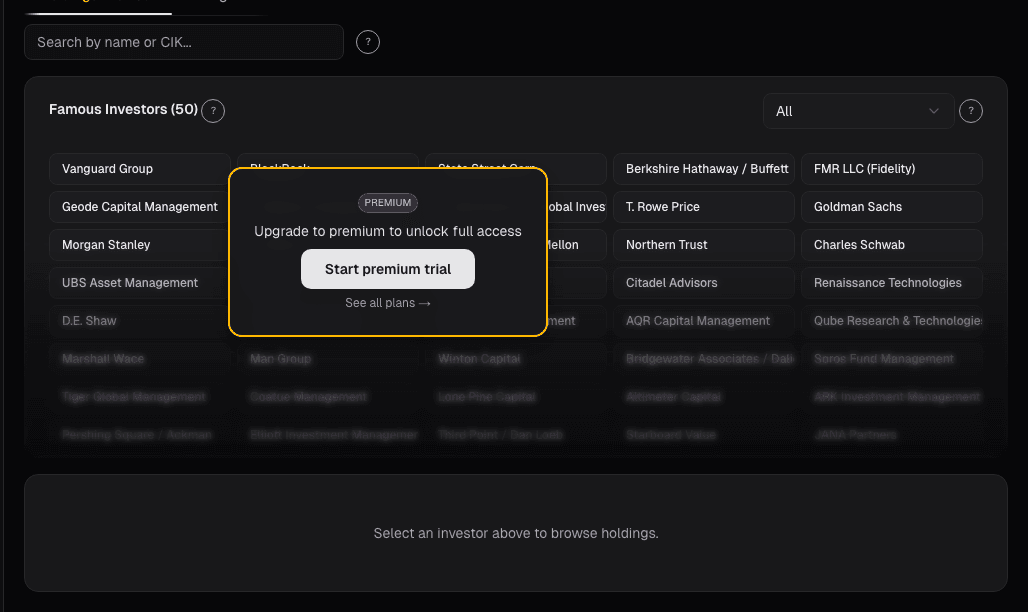
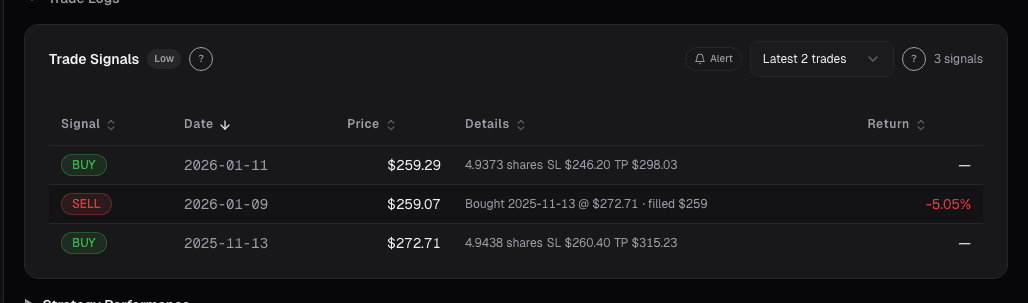
Live dashboard views that match this post. Each tile deep-links to the exact card.
Related reading
The 10-Minute Daily Stock Research Workflow
A structured daily routine for checking your portfolio, reviewing signals, and identifying new opportunities in under ten minutes.
Alt-Data Sentiment at the Portfolio Level
Per-ticker alt-data breaks down past 10 positions. A roll-up of WSB, news, MSPR, and options lets a 90-second scan replace 100 minutes of manual checking.
Portfolio Attribution: Where Your Returns Actually Come From
Beating the benchmark by 400bps feels good until attribution tells you it was all allocation luck on one sector call. Selection vs. allocation vs.
Portfolio Audit Trail: Every Decision
Regulated managers need an audit trail. The Audit Trail card on alphactor.ai records every trade, rebalance, alert, and note into one timestamped log you…
Portfolio Monitoring With Less Noise
Most portfolio dashboards show you everything. Here is how to filter down to the changes that actually require your attention.
Ready to try alphactor.ai?
Validate your trading strategies with statistical credibility testing. Start free.
Get Started Free